Introduction
Robot Interfaces
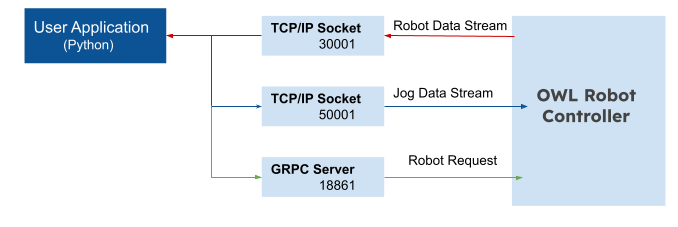
The OWLRobot has the capability to communicate with external devices using various types of communication interfaces.
TCP/IP Socket (30001)
The OWL controller exposes a socket server on port 30001, which allows for the transmission of robot state data and additional messages. This data includes information about the robot’s current state, such as joint angles, end effector position, and other relevant parameters.The socket server primarily facilitates communication between the graphical user interface (GUI) and the controller.It serves as a means for the GUI to receive real-time updates on the robot’s state at 125Hz, enabling visualizations and monitoring of its position, orientation, and other relevant data.
It plays a crucial role in maintaining communication and synchronization between the OWL controller and the GUI, ensuring that the interface accurately reflects the robot’s current state and enabling seamless interaction with the robot’s functionalities.
< Robot Message Packet > Robot Data
Description
Type
Joint Position
Current joint [BJ, SJ, EJ, WJ1, WJ2, W3J]
list
Tool Position
Current tcp [x, y, z, roll, pitch,yaw]
list
Input Status
Not used
list
Script Status
XML program status
int
Script state
XML program active state
string
Script assignments
XML program active assignments
string
Robot mode
Current mode of robot
int
Exception source
Source of exception on robot
string
Exception message
Exception message
string
Operator request
Operator requested assignment
string
Operator message
Operator requested assignment message
string
Important
The state socket server, accessible at port 30001, provides real-time updates of robot-related data at a frequency of 125Hz. To ensure timely and responsive updates, the TCP_NODELAY option is enabled on this socket server. TCP_NODELAY is a feature that disables Nagle’s algorithm. By utilizing TCP_NODELAY, the client applications that read the data stream from the socket server can receive real-time updates without unnecessary delays.
However, it’s worth noting that when multiple clients are connected to the socket server, the update frequency may be affected. Each client use network resources, potentially resulting in a reduced update rate compared to the 125Hz frequency when only a single client is connected.
TCP/IP Socket (50001)
The controller binds a socket server to port 50001 to receive Joint/TCP jog data and pass it to the internal controller. The jog data comprises a list of direction values (-1, 0, 1), which indicates the desired movement direction of the robot in both Joint and Cartesian space. Each value corresponds to a specific joint or base frame axis of the robot. For instance, if we want to jog the robot’s base joint in a particular direction, we would send a jog command to the controller with the values [1, 0, 0, 0, 0, 0]. This indicates that the base joint should move while keeping all other joints stationary (set to zero command).
The jog command can control individual joints or base frame axis of the robot independently, allowing for precise and selective movement. Additionally, the controller’s socket server can only handle one client at a time. If a new client attempts to connect, the previous client’s connection will be closed to ensure exclusive control over the jog commands.
Warning
This interface is only intended for use by the HMI GUI. It enables communication between the GUI and the controller for jogging operations. The GUI sends jog commands to the controller, specifying the desired movement direction for each joint or axis. The controller then processes these commands and controls the robot accordingly.It’s worth noting that this interface is dedicated to the GUI and is not intended for other clients or external devices. Its purpose is to facilitate smooth and precise jogging of the robot through the HMI’s intuitive controls.
GRPC Server
To operate the OWLRobot, the main entry point is the GRPC server running on port 18861. Requests are sent to this server using the gRPC protocol to command the internal control of the robot. The server processes these commands and adjusts the robot’s behavior accordingly.The GRPC server also handles any exceptions that may occur during the operation of the robot. If an error or exception arises,it will be communicated back to the client through the server’s response or raise exception. In addition to the core functionality of controlling the robot, the GRPC server also provides utility functions that can be used for various purposes related to the operation and management of the robot.
Overall, the GRPC server running on port 18861 serves as the primary interface for controlling the OWL robot and offers utility functions for additional operations.
Robot Modes
The OWLRobot have following operational modes defined :
NOT_AVAILABLE
This mode indicates that the robot is unavailable for operation. It is typically encountered when the robot’s boot-up sequence fails to complete successfully. In this state, the robot is unable to perform its intended functions or respond to commands.
POWER_OFF
This mode indicates that the robot is not powered. In this state, the robot will only respond to power on command.
IDLE
This mode indicates that the robot is available to all types of valid operations. In this state, the robot is able to perform its intended functions or respond to commands.
RUNNING
This mode indicates that the robot is executing a program script or a move command. In this state, the robot will not respond to TeachMode command.
PAUSED
This mode indicates that the robot has paused executing a program script or a move command. In this state also, the robot will not respond to TeachMode command.
TEACH_MODE
This mode indicates that the robot is in manual move mode (FreeDrive or JogDrive). In this state, the robot will not respond to any execution commands such as program script or move.
ERROR
This mode indicates that the robot previously shut down abnormally due to a sudden power failure and was unable to save the last encoder position. In this state, the robot must re-zero the position to resume normal operation.
The current robot mode can be easily obtained via the Python client. Below is a code snippet showing how to do it.
from owl_client import OwlClient

client = OwlClient("10.42.0.54")

# Return a integer value representing current robot mode
print("Robot Current Mode :", client.get_robot_mode())
< Robot Modes > Robot Modes
Value
NOT_AVAILABLE
-1
POWER_OFF
0
IDLE
1
RUNNING
3
PAUSED
2
TEACH_MODE
5
ERROR
-2
Robot Motion
Motion is the basic and essential feature of the robotic arm. The robot is provided with a target position that it needs to achieve. To reach the target position, a path with time information is required that robot needs to follow which we called a Trajectory.
The OWLRobot currently supports four move types: MoveJ, MoveL, MoveP, and MoveT. All these move requests will be handled by the internal controller running at 250Hz which provides trajectory control by following the speed profile of the move request.
MoveJ (jointGoal, jointSpeed)
MoveJ moves the tool linearly in joint space to the desired joint position. The JointSpeed parameter controls the trapezoidal velocity profile of motion.
Python Client Example :
from owl_client import OwlClient, Joint

client = OwlClient("10.42.0.54")

# Joints [Base, Shoulder , Elbow, Wrist1 , Wrist2 , Wrist3]
joint = [0.0, 0.0, 0.0, 0.0, 0.0 ,0.0]

jointGoal = Joint(*joint)
jointSpeed = 50 #degrees/sec

client.move_to_joint(jointGoal, jointSpeed)
MoveL (cartesianGoal, toolSpeed)
MoveL moves the tool linearly in Cartesian space to the desired Cartesian position. The ToolSpeed parameter controls the trapezoidal velocity profile of motion.
Python Client Example :
from owl_client import OwlClient, Pose

client = OwlClient("10.42.0.54")

# Pose [x, y , z, roll, pitch , yaw]
pose = [-0.176, -0.240204, 0.489203, 3.1376, -0.087288, 1.56449]

poseGoal = Pose(*pose)
toolSpeed = 100 #mm/sec

client.move_to_pose(poseGoal, toolSpeed)
MoveP (cartesianGoals, toolSpeed, blendFactor)
MoveP moves the tool in linear motion with constant speed and circular transitions and is intended for process operations such as spray painting and powder coating. The size of the blend radius is determined by the blendFactor setting and more the factor more the blend radius.
MoveT (trajectoryGoal)
MoveT allows the robot to follow a trajectory goal consisting of positions, velocities, and accelerations sampled at the controller frequency 250Hz. However, it is important to note that currently only the velocity profile is used to guide the robot along the given trajectory.
Robot Python Client
Python Client makes the following interfaces available:
Both interfaces are available to be used through a single Python class OwlClient
Note
These interfaces allow users to develop custom Python applications around OWLRobot. When developing custom applications using the Python client, commands are no longer sent directly to the robot’s internal controls.